











Ready to try eSIMs and change the way you stay connected?
Download the Airhub app to purchase, manage and top up your eSIMs anytime, anywhere!
App exclusive5% off at checkout
eSIM not working? Find out why — no service, no internet, or won't activate — and fix it step by step on iPhone and Android.
Quick answer: Nine times out of ten, an eSIM that won't work comes down to one of five things: data roaming switched off, the eSIM not selected as your data line, a missing or wrong APN, a carrier-locked phone, or an activation step that simply hasn't finished yet. Start there. Confirm your eSIM is installed and enabled, set as your data line, and that roaming is turned on if your plan needs it — those three checks alone clear up a surprising share of eSIM problems. Still stuck? The sections below cover everything else, including "No Service," "Unable to Activate," and separate walkthroughs for iPhone and Android.
Here's the thing about eSIM issues that's easy to miss: they're almost never caused by the eSIM itself failing. There's no physical card to damage, crack, or leave in last year's jacket. So when something goes wrong, it's nearly always a setting, an activation step that didn't fully complete, or the network you happen to be standing near — not a defect. That's actually good news, because it means most of these problems can be diagnosed and solved without any special tools. You just need to work through the right checks in the right order, which is exactly what this guide does.
New to eSIM technology altogether? Our guide on what an eSIM actually is covers the basics before you dive into troubleshooting.
Run through this before anything else. It takes under a minute and rules out the most common culprits first.
| Check | Why it matters |
| Your phone supports eSIM | Some devices and device variants don't support eSIM at all — see Is My Phone eSIM Compatible to confirm yours does |
| Your phone is carrier-unlocked | A locked phone can refuse a third-party or travel eSIM regardless of other settings |
| The eSIM is actually installed | Confirms the profile downloaded, not just that you scanned a QR code |
| The eSIM line is switched on | A profile can be installed but still toggled off |
| The eSIM is set as your mobile data line | On a dual-SIM phone, data only flows through whichever line is selected |
| Data roaming is on, if your plan requires it | One of the most frequently missed steps for travel eSIMs |
| Your plan is active | Buying a plan and activating it aren't always the same moment |
| You have data remaining | A used-up allowance can look identical to a connection problem |
| You're on a supported network | Full signal bars don't guarantee your plan works on that specific network |
| You have any signal at all | No bars usually points to a coverage issue rather than a settings issue |
| What you're seeing | What it usually means | What to check first |
| eSIM installed but no internet | Data line, roaming, or APN issue | Data line → roaming → APN, in that order |
| "No Service" | Coverage, network selection, or roaming issue | Network selection and data roaming |
| "Searching…" | Phone is trying to register but hasn't found a usable network yet | Coverage, network selection, airplane mode toggle |
| "Unable to Activate eSIM" | Activation hasn't completed — can be expected before travel, or can indicate a real issue | Whether you've reached your destination yet; device compatibility; carrier lock |
| Connected, but no internet | eSIM shows as connected to a network, but data isn't passing through | Data line, roaming, APN |
| eSIM suddenly stopped working | Could be an expired plan, a settings change, a software update, or a network-side issue | Plan status first, then settings, then coverage |
| Slow or dropping connection | Usually network-related, not a fault with the eSIM itself | Coverage, network selection, 5G vs LTE |

Data roaming being switched off is probably the single biggest culprit. A travel eSIM typically connects to a local partner network rather than your home network, and your phone classifies that as roaming — even though roaming is the entire reason you bought the plan in the first place. This one setting explains a huge share of "installed and active but no internet" complaints.
The eSIM not being selected as your data line trips people up constantly, and understandably so. If your phone has more than one active line — a physical SIM plus an eSIM, or two eSIMs — mobile data only flows through whichever one is set as the default. Everything else can be perfect and you'll still get nothing.
Then there's the APN, or Access Point Name, which tells your phone how to actually reach your provider's data network. Get it wrong, or leave it blank, and your eSIM can look fully connected while no data ever loads. It's a small setting with an outsized effect.
A carrier-locked phone is a different animal entirely. It's tied to the carrier that issued it and can reject an eSIM from a different provider no matter how correctly everything else is configured. No amount of toggling will fix this one — the lock itself has to go first.
You might also be staring at "Unable to Activate eSIM," and here's a detail worth knowing: that message doesn't automatically mean something's broken. With many travel eSIM plans, activation is designed to complete once your phone connects to a supported network at your destination, so seeing this before you've even left home can be entirely expected. If it's still showing after you've landed and connected locally, though, that's your cue to keep troubleshooting rather than wait it out.
Expired plans and used-up data allowances cause their fair share of confusion too, mostly because your phone won't always flag it clearly — a quick check in your provider's app usually settles the question in seconds. And occasionally, it's neither of these: a recent iOS or Android update can quietly affect eSIM settings, and thin local coverage can mimic a settings problem even when nothing is actually misconfigured.
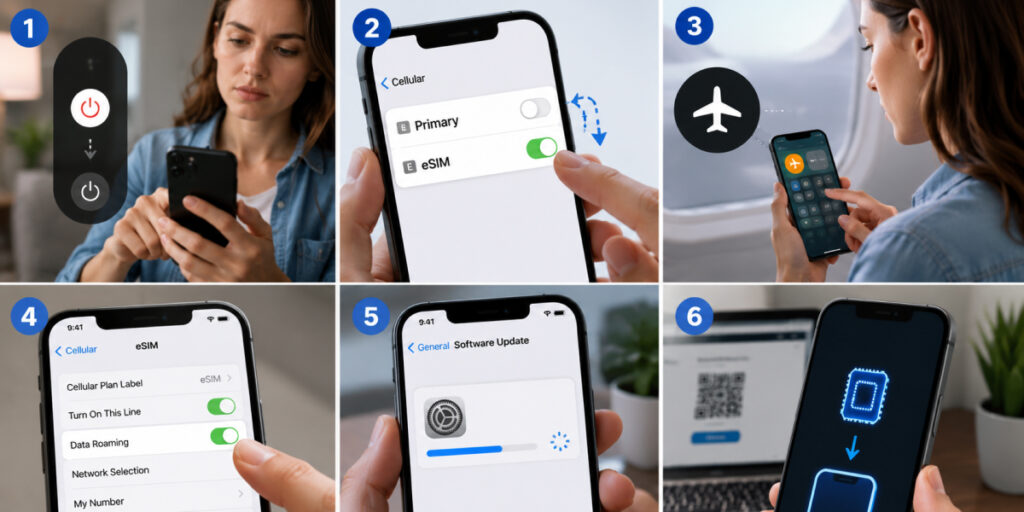
Work through these roughly in order, simplest to most involved. Not every step will apply to your specific situation — if you already recognize your symptom, jump straight to the dedicated section below instead of working through the whole list.
A note before you reinstall anything: deleting an eSIM profile isn't a move to make early. Some providers let you re-download a profile if needed; others limit this, particularly on data-only travel plans, and a used QR code may not work a second time. Remove a profile before you've confirmed your provider's policy, and you could end up without an easy way back in. Try everything above first, and check your provider's instructions before deleting.
This is one of the most common versions of the problem, and it's confusing precisely because it looks like everything's fine. Your eSIM shows as installed and connected, but nothing loads. The reason: being "connected" and having working data are two separate states. Your phone can register with a network perfectly well without data ever successfully passing through it.
Work through these in order:
Those six checks resolve this particular problem in most cases. Still not working after all six? Skip ahead to the escalation section further down.e three and "connected but no internet" clears up in the large majority of cases.
"No Service" means your phone isn't currently registered with any usable network. "Searching" means it's actively trying and hasn't succeeded yet. Both usually trace back to the same handful of causes:
One quick way to narrow it down: if a physical SIM or another eSIM on the same phone gets signal in the same spot, the problem is likely specific to your eSIM's settings, not the location. If nobody around you has signal either, you're probably looking at a coverage or outage issue that no amount of settings-tinkering will fix. Ruled out both? That's a reasonable point to contact your provider.
Quick answer: Seeing "Unable to Activate eSIM" before you've traveled can be completely normal, since activation on many travel eSIM plans is designed to complete only once your phone reaches a supported network at your destination. It's not automatically fine, though — if the message is still showing after you've arrived and connected, or if you're not traveling at all, it's worth troubleshooting rather than assuming it'll sort itself out.
It helps to think of this as three separate things that can each go wrong independently:
If activation is failing and you're not sure why:
Menu wording shifts slightly between iOS versions, so if a label below doesn't match exactly what you're seeing, look for the closest equivalent under Settings → Cellular.
An "Unable to Activate" message and a "No Service"/"Searching" status behave identically on iPhone to what's described in the dedicated sections above — same underlying causes, same checks, regardless of device.
On Android, exact menu names vary by manufacturer and version, so treat the paths below as examples rather than a universal map.
Don't see your device listed here specifically? Check our list of eSIM-compatible devices — the settings menu structure tends to stay fairly consistent within the same manufacturer, even across different models.
Do you need data roaming on for an eSIM? Usually, yes. Many travel eSIM plans connect you to a local partner network abroad rather than your home network, and your phone treats that as roaming by default. That said, this isn't universal across every eSIM or every plan — follow your specific provider's instructions rather than assuming every travel eSIM behaves identically. And you don't need to touch the roaming settings on your home SIM to get a travel eSIM working; the setting that matters lives on the eSIM line itself.
Can a carrier lock prevent an eSIM from working? Yes, and it's a hard stop. A carrier-locked phone is restricted to the carrier that issued it, which can cause it to reject an eSIM from a different provider even when every other setting is exactly right. On iPhone, check Settings → General → About for lock status. On Android, the method varies by manufacturer — your carrier can usually confirm this directly if it's not obvious in settings.
When does network selection actually matter? Automatic works correctly most of the time, which is why it's the default. Manual selection is worth trying only if your phone keeps registering on a network your plan doesn't actually support — and yes, it's entirely possible to have full signal bars while connected to a network your provider has no agreement with at all.
Running a physical SIM and an eSIM together, or two eSIM profiles on the same device? A few things are worth checking specifically:
A slow or unstable connection doesn't necessarily point to anything wrong with the eSIM itself. eSIMs don't inherently run faster or slower than physical SIMs — performance comes down to the network you're connected to, not the format of the SIM.
Common contributing factors: weak local coverage, network congestion in busy areas, limited 4G/5G availability where you are, a manually selected network that isn't actually the strongest option available, or creeping up on your data limit if your plan throttles speed near the cap.
Worth trying: moving to an area with better coverage, restarting your phone, toggling Airplane Mode, confirming network selection is set to Automatic, or switching from 5G to LTE/4G if 5G specifically seems unreliable in your current location.
Reach out to your provider if:
Having the following ready will speed things up considerably:
If you're an Airhub customer, our support team can look into order-specific or destination-specific issues once they have these details in hand.
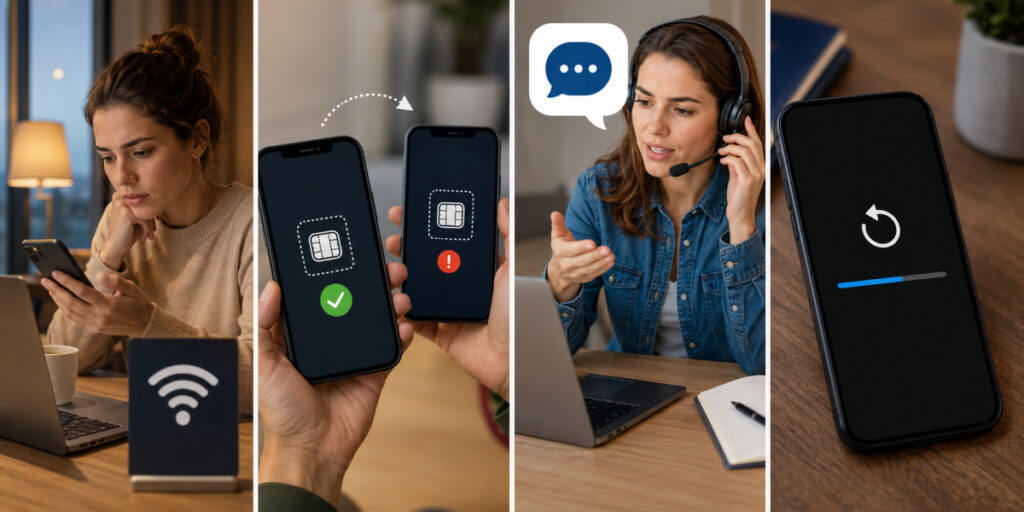
Only after you've worked through the checks above — never as a first move. Removing an eSIM profile means starting the install from scratch, and not every provider allows the same QR code or activation link to be reused. Before deleting anything, confirm your provider's policy on reinstalling a profile. Skip that step and you risk being left without a working connection until support can step in.
If you're troubleshooting a persistently uncooperative eSIM and considering starting fresh with a new plan instead, you can buy a prepaid eSIM for your next destination — once you've confirmed the current issue isn't just a simple settings fix.
Most commonly, it's data roaming being off, the eSIM not being set as your data line, an incorrect APN, or an activation step that hasn't completed — check those first before assuming anything is broken.
Being connected to a network and having working data are different things. Check your data line, data roaming, and APN, in that order.
Confirm it's listed under Settings → Cellular, set as your Cellular Data line, and that Data Roaming is on if your plan requires it. An "Unable to Activate" message before travel can be expected in many cases.
This can be normal before you've traveled, since many plans activate on first connecting to a network at your destination. If it's still failing after arrival, check device compatibility, carrier lock status, and whether your QR code has already been used.
For most travel eSIM plans, yes, since they typically connect to a local partner network your phone classifies as roaming. Confirm with your specific provider's instructions, since this can vary by plan.
Usually weak coverage, an unsupported network, or roaming being disabled. Check network selection and roaming before assuming a deeper problem.
Typically related to local coverage, network congestion, or which network you're connected to, rather than the eSIM itself.
Yes — a locked phone can reject an eSIM from a different provider regardless of whether your settings are otherwise correct.
Many devices support multiple stored eSIM profiles, though how many can be active simultaneously depends on your specific phone.
Only after trying the other troubleshooting steps, and only once you've confirmed your provider's policy on reinstalling — some providers limit how many times a profile can be redownloaded.
Get your Airhub eSIM in minutes and travel without roaming surprises.
Download the Airhub app to purchase, manage and top up your eSIMs anytime, anywhere!