











Ready to try eSIMs and change the way you stay connected?
Download the Airhub app to purchase, manage and top up your eSIMs anytime, anywhere!
App exclusive5% off at checkout
Learn how to easily check if my iPhone is unlocked. Understand what “unlocked iPhone” means, how to unlock it via your carrier, & why it’s key for travel.
Travelers and phone owners frequently ask: Is my iPhone unlocked? This is relevant if you plan on using local SIM cards or eSIM data plans while you are traveling overseas. With an unlocked iPhone, you can use any carrier's SIM card in your phone, or even add a travel eSIM without restrictions. Here’s how to find out if your iPhone is unlocked, what it means, and how it can save you money and hassle when you’re on the road.

An unlocked iPhone is one not tied to any single carrier. It means your iPhone accepts any compatible SIM card or eSIM from any network. Unlocked devices “have no limits and no restrictions” and can get signals from all networks worldwide. In short, an unlocked iPhone “can use any carrier’s SIM card and eSIM,” giving you freedom to switch providers to use cellular data. These are the reasons why it is important to answer: how to see if an iPhone is unlocked?
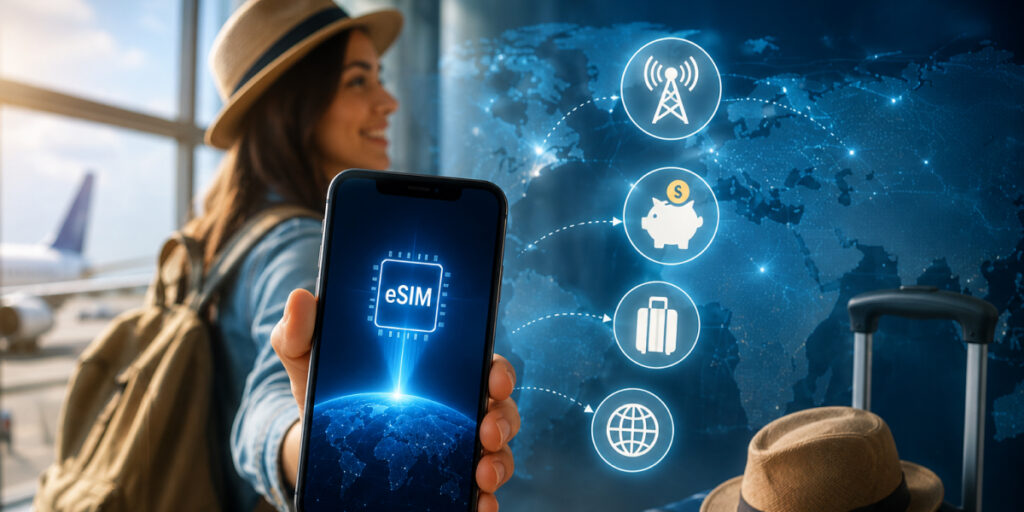
There are many reasons which makes it essential to have an unlocked iPhone:
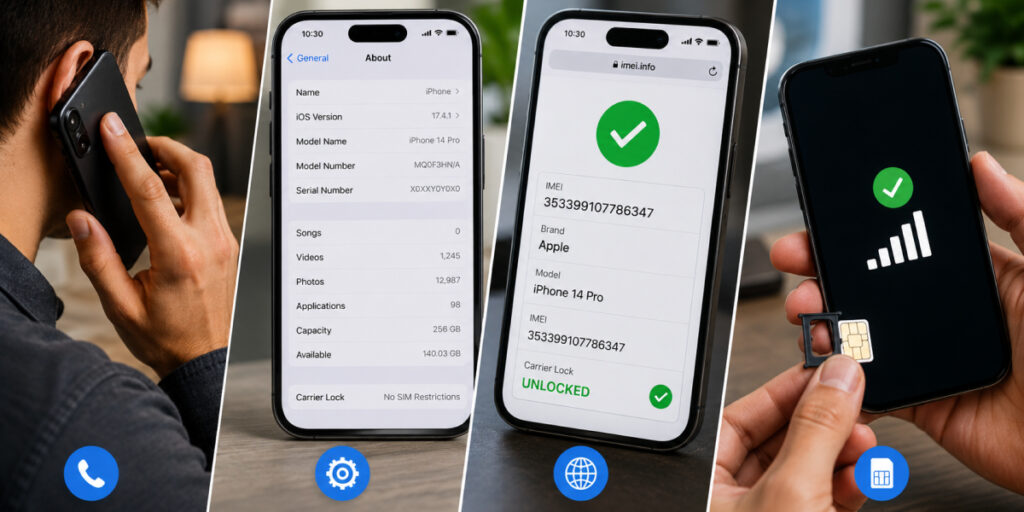
If you are wondering: how to know if an iPhone is unlocked? There are a few simple methods you can follow:
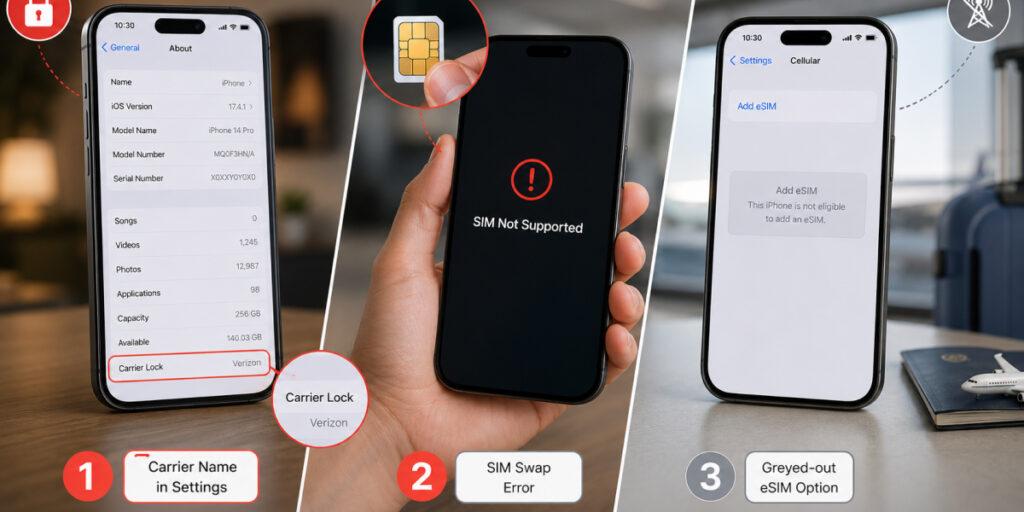
If you are not sure whether you have apple iPhone is unlocked through your carrier or not, here are the signs you should note:
Unlocking Your iPhone: If your iPhone turns out to be carrier-locked, here’s how to unlock it:
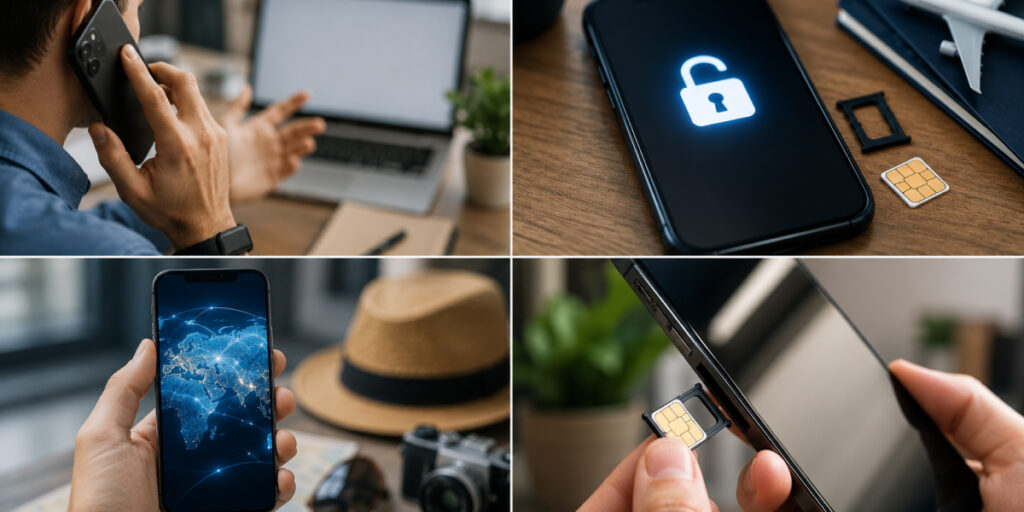
Once the process is done, check Settings > About > Carrier Lock again. You should now see “No SIM restrictions” if the unlock succeeded. If you want to know: How to Check IMEI Number on iPhone? Read our full guide.

A common myth is that Apple can unlock your iPhone. They cannot. Apple’s own support clearly says only your carrier can unlock the phone. Visiting an Apple Store or calling Apple won’t magically unlock a carrier contract. Apple can guide you to the setting that shows the lock status, but they’ll ultimately tell you to contact your network provider for any unlocking. So when in doubt, deal with the carrier, not Apple, for unlocking issues.
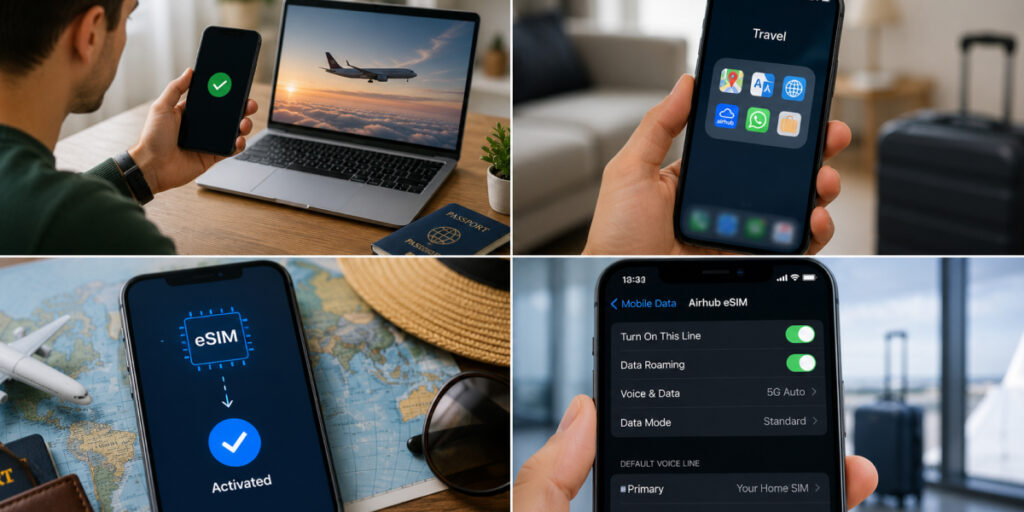
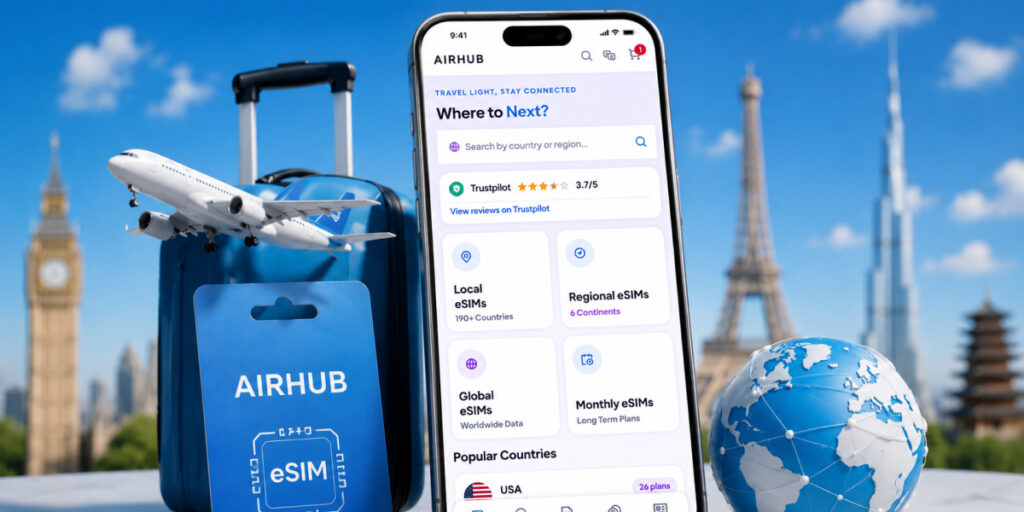
For travelers, Airhub offers a perfect solution once your iPhone is unlocked. With Airhub’s travel eSIM, you can buy data in over 190 countries instantly. There’s no need to hunt for local SIM shops; just download the Airhub app, buy an eSIM online, scan the QR code, and start using data abroad. Airhub partners with major local networks worldwide, so you get reliable coverage and affordable plans (including unlimited data options). Over 5 million travelers trust Airhub to keep them connected. And because it’s all digital, activation is instant, with no hidden fees.
Is my iPhone unlocked? Now you know: check your settings, use an IMEI checker, or talk to your carrier. An unlocked iPhone means maximum flexibility; you can switch SIMs and use global data plans like Airhub’s without a hitch. If it’s locked, don’t panic; just contact your carrier to unlock it before your trip. Being prepared means you can avoid roaming fees and stay connected effortlessly with an unlocked phone on any network.
Go to Settings > General > About and look at the Carrier Lock field. If it says “No SIM restrictions,” your iPhone is unlocked. If it shows a carrier name or “SIM locked,” it’s locked.
You must contact your wireless carrier and request an unlock. They’ll check requirements (usually the device must be paid off) and, upon approval, unlock it for you.
No. Airhub’s travel eSIMs require an unlocked phone. A locked iPhone will block adding a different carrier’s eSIM.
It’s an online tool where you enter your iPhone’s IMEI number to retrieve info. A good IMEI checker will tell you whether your device is carrier-locked or factory unlocked.
Officially unlocking through your carrier does not void Apple’s warranty. Only unauthorized unlock hacks (not recommended) can affect warranty.
Get your Airhub eSIM in minutes and travel without roaming surprises.
Download the Airhub app to purchase, manage and top up your eSIMs anytime, anywhere!