











Ready to try eSIMs and change the way you stay connected?
Download the Airhub app to purchase, manage and top up your eSIMs anytime, anywhere!
App exclusive5% off at checkout
how-to-setup-hotspot-on-esim1
Here's something most travelers don't realize until they're standing in an airport with a dead laptop: the fix is already in your pocket. You don't need a rented pocket router or a second SIM to get your laptop, tablet, or a friend's phone online. If your travel eSIM is active, your phone can become a Wi-Fi hotspot in about a minute. The catch and there's always one is that a few small settings decide whether it works flawlessly or refuses to turn on at all. This guide covers the exact steps for iPhone and Android, the fixes for when the toggle won't cooperate, and how to share data without watching your plan vanish by lunchtime.
Usually, yes and that surprises people who assume a "digital" SIM behaves differently. It doesn't. An eSIM shares data exactly like a physical one, so once it's your active data line, flipping on Personal Hotspot (iPhone) or Mobile Hotspot (Android) lets other devices join over Wi-Fi.
The real variable isn't your phone. It's the plan. Some travel eSIMs quietly block tethering or charge extra for it, and when they do, the symptom is maddeningly vague: the toggle does nothing, or the connection holds for a minute and then quits. That's exactly why you want to check this before you buy, not after you've landed somewhere with no other way online. Airhub is upfront about it our esim data plans support hotspot sharing on compatible devices. Hotspot sharing is allowed at no extra fee and simply draws from your existing data allowance.
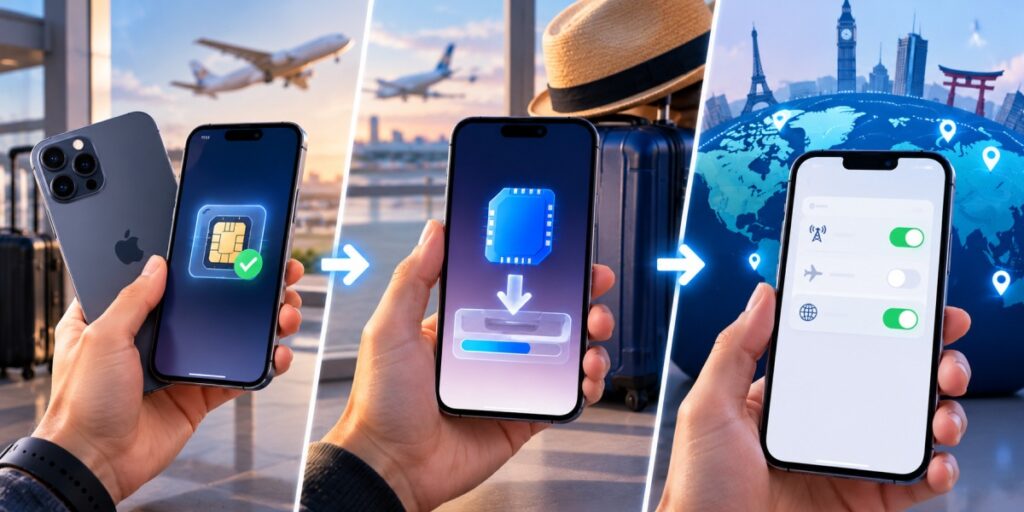
Most hotspot headaches trace back to something skipped before the toggle ever gets flipped. Three quick checks clear up the vast majority of them.
First, confirm your phone is eSIM compatible. Nearly every phone from the last few years is, but a ten-second check beats an unpleasant surprise here's how to confirm you've got an eSIM-compatible device. Second, install and activate the eSIM if you haven't already, since a hotspot can only share data the phone is actually receiving; if that step's still pending, activate your eSIM first. Third and this is the one that trips up seasoned travelers turn on Data Roaming for the eSIM line. Travel eSIMs connect through a local partner network, so they generally need roaming switched on to pull data abroad. Nine times out of ten, a hotspot that "won't work" overseas is really just roaming left off.
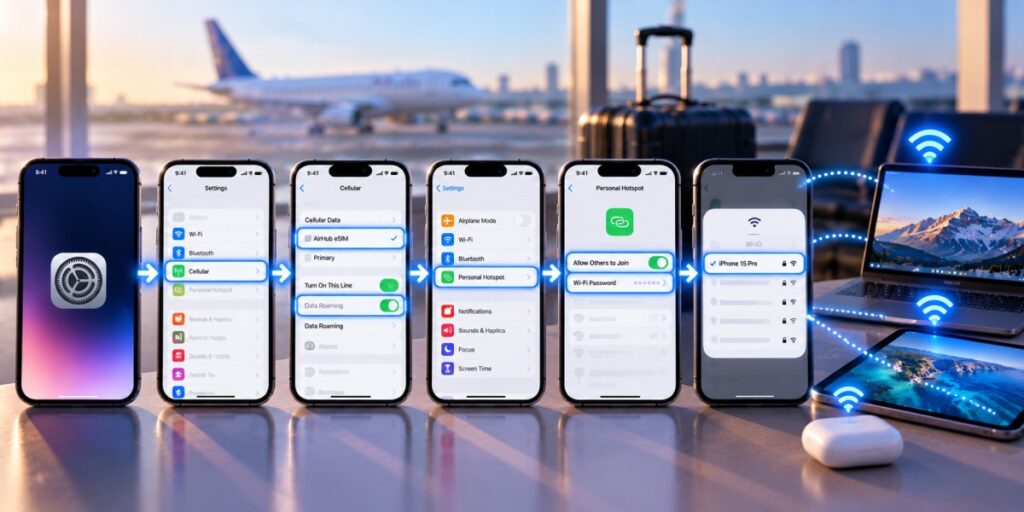
Tested on iOS version + iPhone model you actually tested, e.g. "iPhone 15, iOS 18." One quick note: the menu reads "Cellular" in the US and "Mobile Data" nearly everywhere else, same setting, different label.
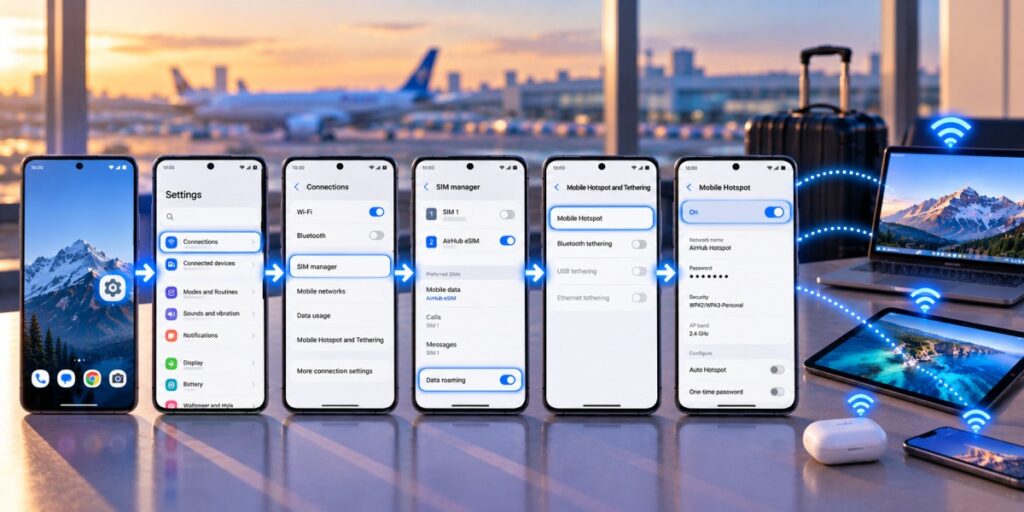
Tested on Android version + model, e.g. "Pixel 8, Android 15." The steps barely differ between brands only the labels move around. Samsung tucks things under "Connections," Pixel under "Network & Internet."
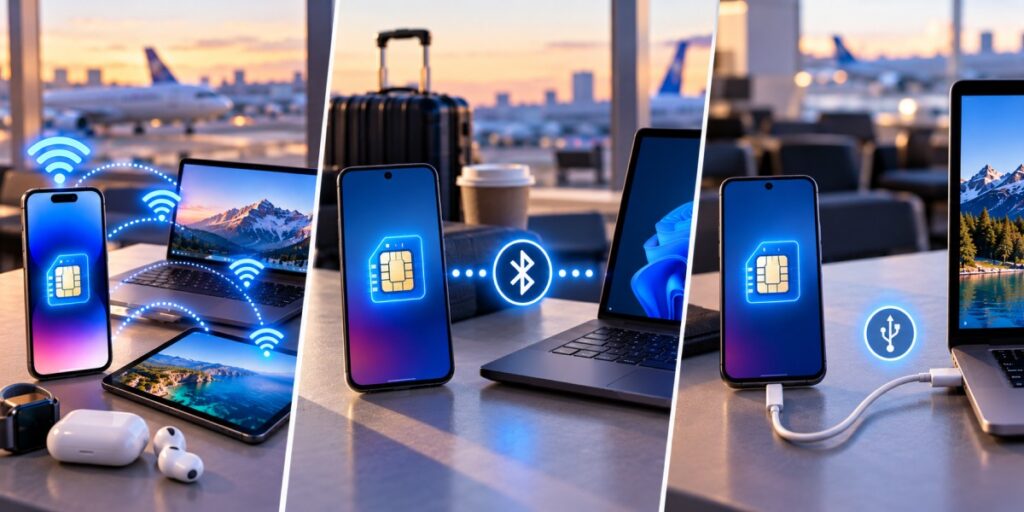
Wi-Fi is what most people reach for, but two alternatives earn their keep in specific moments. Bluetooth tethering pairs the two devices directly and shares the connection that way; it's noticeably slower than Wi-Fi, but it sips battery instead of gulping it handy when you're low on charge and only need light browsing. USB tethering runs a cable from your phone to a laptop and tends to be the most stable of the three, with the bonus that it charges your phone while you work. That combination makes it the quiet favorite for long sessions in a café or on a train.
Either way, the data still comes from the same eSIM allowance, so the meter runs no matter which method you pick.
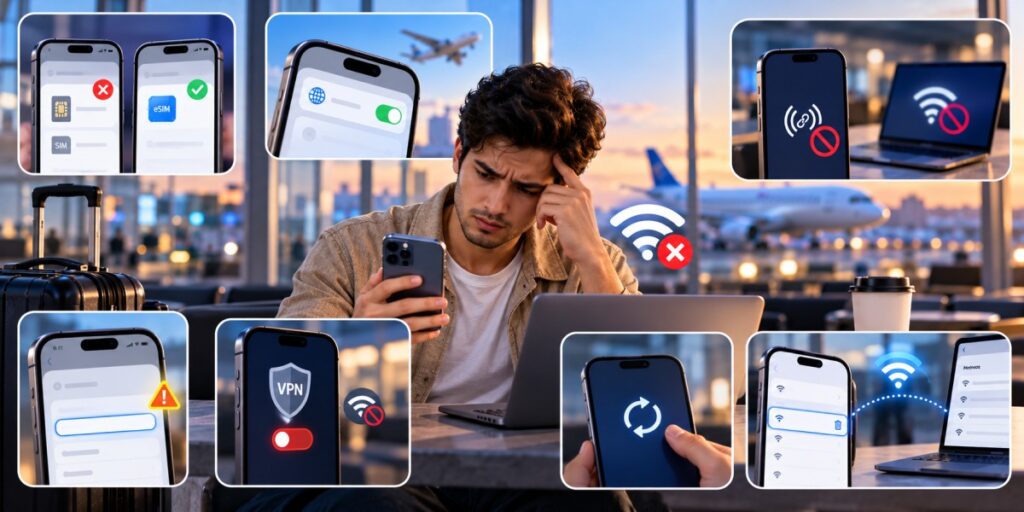
When a hotspot refuses to behave, it's rarely the phone throwing a tantrum for no reason. Almost every case comes down to one of the following, roughly in order of how often it's the culprit.
Still nothing? Restart the phone, and if that fails, reset network settings as a last resort. Just remember it wipes your saved Wi-Fi passwords, so have them somewhere handy before you do it.
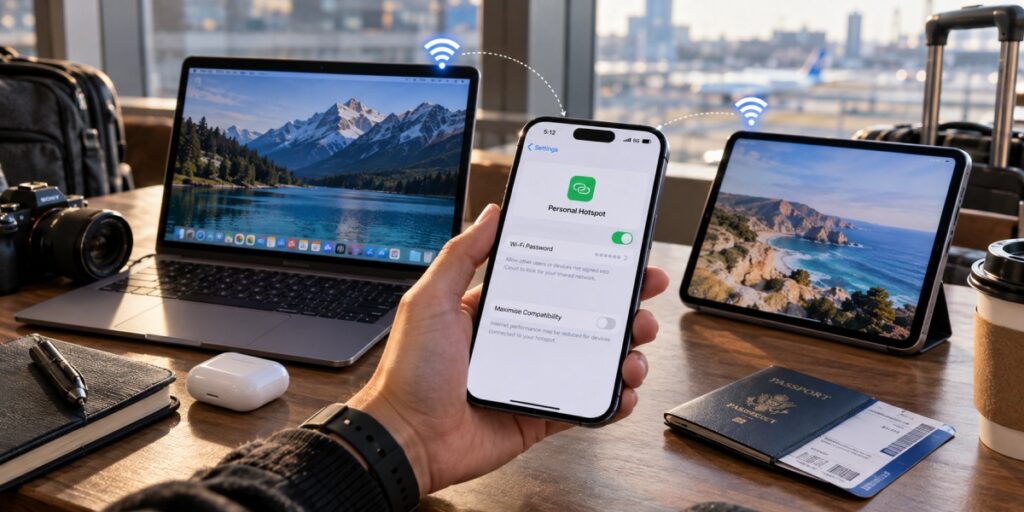
Switching on a hotspot doesn't add any "overhead" data; connected devices simply draw from the same pool your phone was using. What catches people off guard is how much laptops and tablets burn through without being told to. A laptop treats your hotspot like home Wi-Fi and cheerfully downloads a system update in the background, and suddenly a day's worth of data is gone.
Here's a rough hourly guide to set expectations:
| Activity (per device) | Approx. data use |
| Web browsing / email | 50–150 MB/hr |
| Music streaming | 50–150 MB/hr |
| Video call | 0.5–1.5 GB/hr |
| SD video streaming | ~0.7 GB/hr |
| HD video streaming | 2–3 GB/hr |
| Laptop OS / app updates | 2–5 GB (one-off) |
Making a plan stretch is mostly about controlling what the other devices do in the background. Keep laptops on Low Data Mode (iPhone) or restrict background data (Android), pause cloud sync like Drive or iCloud, and skip HD video on anything sharing the connection. Switch the hotspot off the moment nobody's using it — it keeps sipping data and battery while it's live. And it does drain a battery fast, so if you're sharing for more than an hour, keep a power bank plugged in.
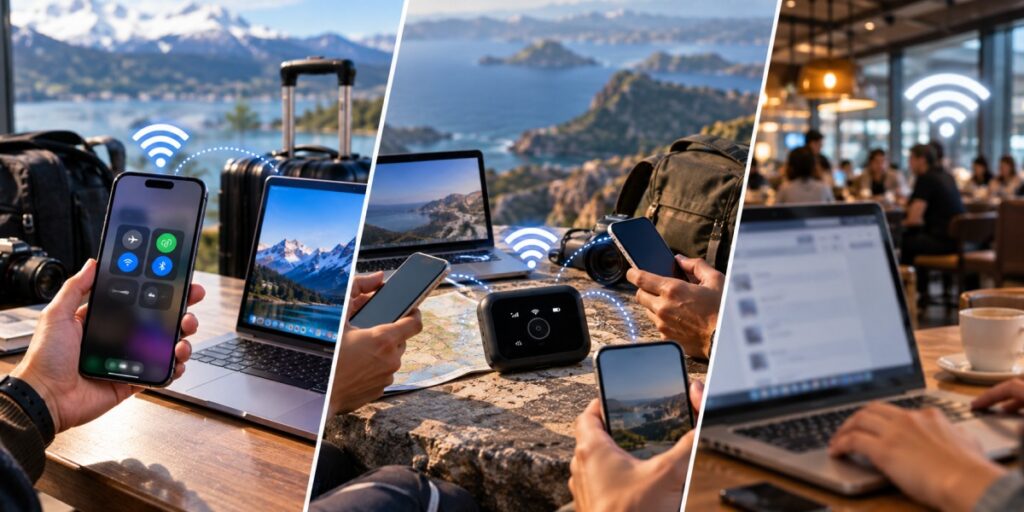
| eSIM hotspot | Pocket Wi-Fi | Public Wi-Fi | |
| Extra device to carry | No | Yes | No |
| Setup | Minutes, on your phone | Rent, pick up, return | Find a network |
| Security | Private, password-set | Private | Often unsecured |
| Cost | Your data plan only | Daily rental + deposit | Free, but risky |
| Battery | Uses phone battery | Separate battery | None |
| Best for | Solo travelers, short trips, light sharing | Groups, heavy daily use | Quick, low-stakes browsing |
For most travelers feeding one or two devices, the eSIM hotspot wins on sheer convenience: nothing to rent, nothing extra to charge, nothing to return at the airport. Pocket Wi-Fi still earns its place for a group hammering data all day without draining anyone's phone. And public Wi-Fi is fine for a quick map check, but I'd think twice before doing anything sensitive banking, work logins on a network anyone can join.
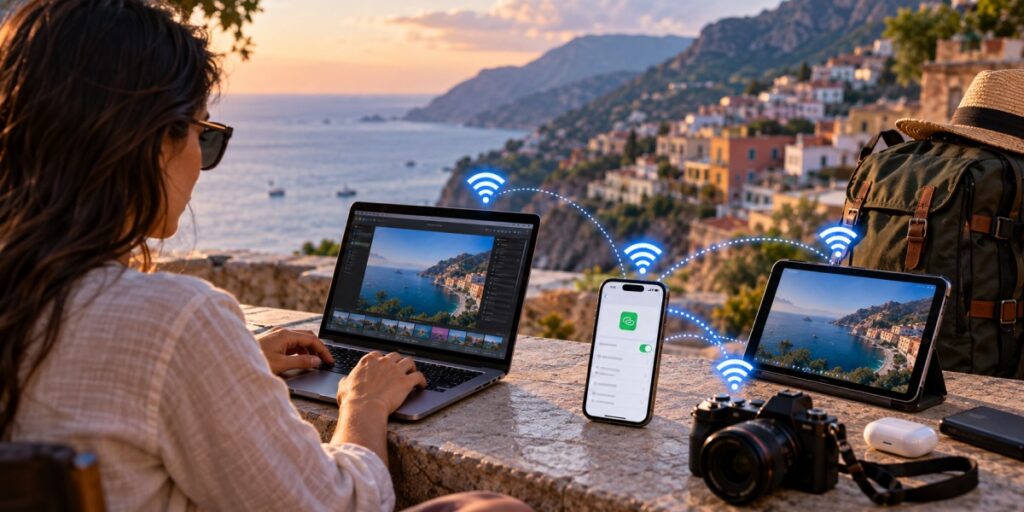
Airhub eSIMs install straight from the app or website with a QR code, no store visit, no waiting for a card to arrive and work across 190+ countries. Once installed, your data works right away, and hotspot sharing is built in on compatible devices. Hotspot/tethering is allowed on supported plans, with no extra fee, and draws from your existing data allowance.
Planning a trip? Browse Airhub eSIM data plans, or read up on how an eSIM actually works before you commit. Already on the road and running low? You can top up your data in seconds.
Yes as long as your device supports eSIM and your plan allows tethering, an eSIM shares data just like a physical SIM. Set the eSIM as your active data line, switch on Personal Hotspot (iPhone) or Mobile Hotspot (Android), and connect your other devices.
Make sure the eSIM is installed, active, and set as your data line, with Data Roaming on if you're abroad. On iPhone: Settings → Cellular → Personal Hotspot → Allow Others to Join, then set a password. On Android: Settings → Connections → Mobile Hotspot and Tethering → Mobile Hotspot, set a name and password, and toggle it on.
The usual suspects: the wrong SIM line is set for data (common on dual-SIM phones), Data Roaming is off, the APN is blank, or the plan blocks tethering. Start by confirming the eSIM is your data line, turn roaming on, restart the phone, and double-check that the plan actually supports hotspot use.
No it comes down to the provider and the specific plan, and some block tethering or charge for it. Always check before buying. Airhub plans support hotspot sharing.
The hotspot itself adds nothing extra, but more connected devices means more total usage laptops especially run background updates and syncs you never see. Keep an eye on usage in your phone's settings and set limits so nothing surprises you.
Most phones handle around 5–10 at a time. The more you add, the more your speed and battery get split, so drop anything you're not actively using.
Get your Airhub eSIM in minutes and travel without roaming surprises.
Download the Airhub app to purchase, manage and top up your eSIMs anytime, anywhere!