










Ready to try eSIMs and change the way you stay connected?
Download the Airhub app to purchase, manage and top up your eSIMs anytime, anywhere!
App exclusive5% off at checkout
Use this eSIM installation guide to check compatibility, scan your QR code, and activate your travel eSIM before flying.
Landing in a new country with no data is a bad start to any trip. A travel eSIM fixes that. You skip the airport SIM kiosk and get online the moment you land, with no tiny card to swap. This eSIM installation guide covers the prep, the setup on iPhone and Android, and the fixes for common problems.
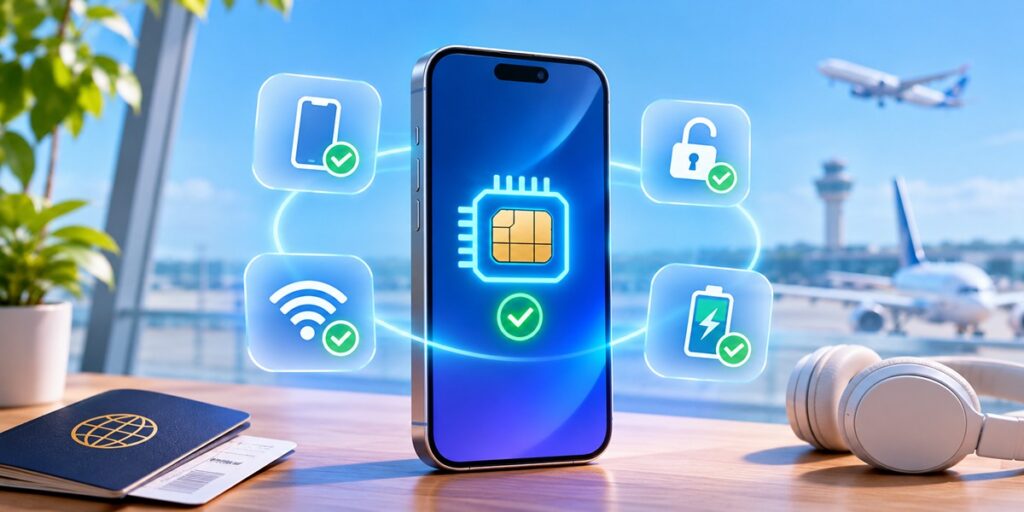
Sort these out before you scan anything:
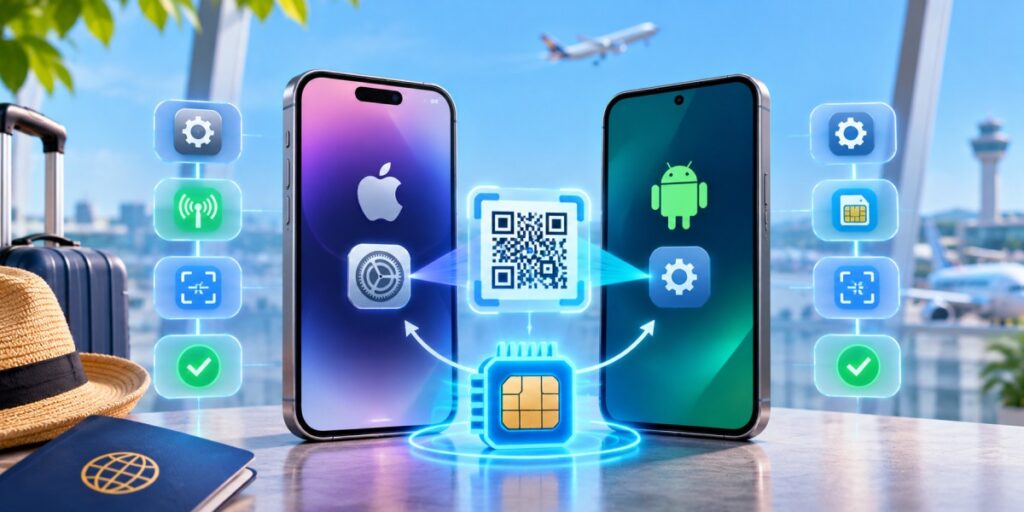
Installation takes only a few minutes on either platform. This is the proper eSIM installation guide for:
On iPhone: Settings>Cellular (Mobile Data), Add eSIM or Add Cellular Plan. Scan the QR code from your provider and follow the prompts until done.
On Android: Go to Settings → Connections (or Network & Internet), then open SIM Manager or SIM cards. The wording varies by model. Tap Add eSIM, choose Scan QR code, and scan the Airhub code. Once the profile downloads, give the line a name you'll recognize, such as "Travel Data."
After scanning, you should see a confirmation message. Don't scan the same code again, because most QR codes work only once.
Next, activate the line, which people often skip:
Even with good prep, things can go wrong. If your eSIM installation guide steps don't go as planned, here's what usually causes trouble.
1. "eSIM not supported" or "Cannot add eSIM." Your phone either lacks eSIM support or is locked to a carrier. Some region-specific models, including certain China and Hong Kong versions, have no eSIM feature at all. In that case you'll need a different device.
2. The QR code won't scan. Turn up your screen brightness, or print the code if it's on another device. Wipe your camera lens and remove any glare. If it still fails, use the manual activation code your provider supplied.
3. Installation fails or freezes. Unstable Wi-Fi is the usual cause, and hotspots tend to drop mid-download. Restart your phone, connect to a reliable network, and try again. Install at home, not on airport Wi-Fi.
4. Installed, but no signal. The eSIM line is sometimes left off after setup. Enable it, set it as your data line, and switch on Data Roaming.
5. "Plan already in use" error. Many eSIM codes allow only a limited number of scans. If you see this message, contact support and ask them to reset the code or send a new one.
A little planning before departure saves money and stress.

Airhub plans cover 190+ countries, with affordable data bundles and voice options in some regions. Once your eSIM is installed, the Airhub app (iOS and Android) lets you check usage, top up data, and switch plans without scanning a new QR code. You can also Buy eSIM plans straight from your phone and handle activation in the same place. App users often get discount codes too.
That's the whole process. Check that your phone is compatible and unlocked, install the eSIM on stable Wi-Fi, switch on the line, and enable data roaming. Follow this eSIM installation guide and you can open Google Maps, WhatsApp, or Netflix the moment you land, with no hunt for a local SIM and no roaming bill shock. Safe travels!
A digital SIM built into your phone, an eSIM basically replaces a physical card in your device. Install a plan by scanning a QR code or downloadable app, and activate it in your settings - you use it the same way as you would a regular SIM.
iPhones from the XS and XR onward support it, and the iPhone 14 and later in the US have no SIM tray at all. On Android, supported models include the Google Pixel 3 and later and Samsung's Galaxy S20 series and newer. Always confirm your exact model.
Yes, on dual-SIM phones. A common setup is the home SIM for calls and texts and the eSIM for data abroad.
Yes. The profile downloads over the internet, so use a stable Wi-Fi network rather than a weak public connection or hotspot.
It depends on the plan you buy. Airhub plans generally run from 7 to 30 days or more, and you can top up in the app.
Get your Airhub eSIM in minutes and travel without roaming surprises.
Download the Airhub app to purchase, manage and top up your eSIMs anytime, anywhere!