

Ever experienced the worry when your messages aren’t sending, and Instagram keeps trying to load? And to add to the stress, imagine the 4G, 5G, or LTE icon disappearing or going grey. “Why is my cellular data not working?” is one of the most searched topics on phone problems globally. Don’t fret yet, though. We have gathered some quick fixes for you to try. We will guide you through every common cause and the steps you can take to fix them.
Table of Contents
- What Is Cellular Data?
- Why is My Data Not Working?
- The Most Common Reasons Your Mobile Data Is Not Working
- How to Fix Cellular Data Not Working
- Reasons for Mobile Network Not Available After Traveling?
- When Your Cellular Network Is Not Available
- Could an eSIM Be the Long-Term Fix?
- Airhub eSIM: Reliable Data Without the SIM Card Headaches
- FAQs
What Is Cellular Data?
Cellular data allows you to use the internet on the go without having to secure a WiFi connection. It’s a seamless way to be online and is mostly done through a SIM card or an eSIM.
Why is My Data Not Working?

When cellular data stops working, it could be a simple settings problem or a combination of a few. First, you have to know if your cellular data is from an eSIM or a physical SIM (yes, there’s a massive difference). We suggest reading our eSIM VS SIM guide if you want to know the difference between the two.
The Most Common Reasons Your Mobile Data Is Not Working
Before we jump straight into the fixes, we should study the four main categories of causes first. We can’t cure a patient if we don’t know the cause, can we?
1. Network and Signal Issues

Sometimes cellular data is not working even when you have signal bars showing. That's because signal strength and data availability aren't the same thing.
- Poor signal strength - Basements, elevators, rural areas, and thick concrete walls all block cellular signals
- Network congestion - At busy events, stadiums, or city centers, towers get overloaded and data slows or drops entirely
- Carrier outage - Occasional, but it happens. Check downdetector.com to see if your carrier is reporting issues in your area
- Out-of-coverage area - If you're in a location your carrier doesn't cover, you'll see "No Service" or "SOS Only" regardless of your settings
2. Device Settings Problems
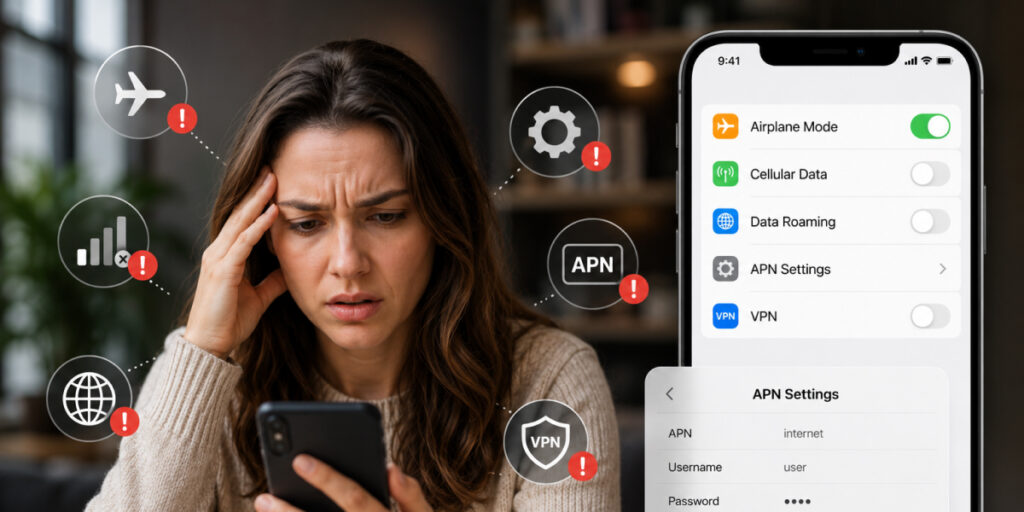
An accidentally toggled setting is the most common cause of cellular data not working, and the easiest to fix.
- Airplane mode is on - This disables all wireless connections including cellular. Even a brief airplane mode toggle (turning it on and off) can reset a stuck connection
- Cellular data is switched off - Easy to accidentally disable in the Settings or Control Center
- Data roaming is disabled - If you're traveling abroad and roaming is turned off, your phone won't connect to foreign networks
- APN settings are incorrect - Access Point Name settings tell your phone how to connect to your carrier's network. Wrong settings = no data
- A VPN is interfering - Some VPN configurations block cellular data or cause routing conflicts
Quick note: If airplane mode is a recurring issue or you're unsure how it affects your connectivity, our guide on airplane mode covers exactly how it interacts with your data and eSIM settings.
3. SIM Card Issues
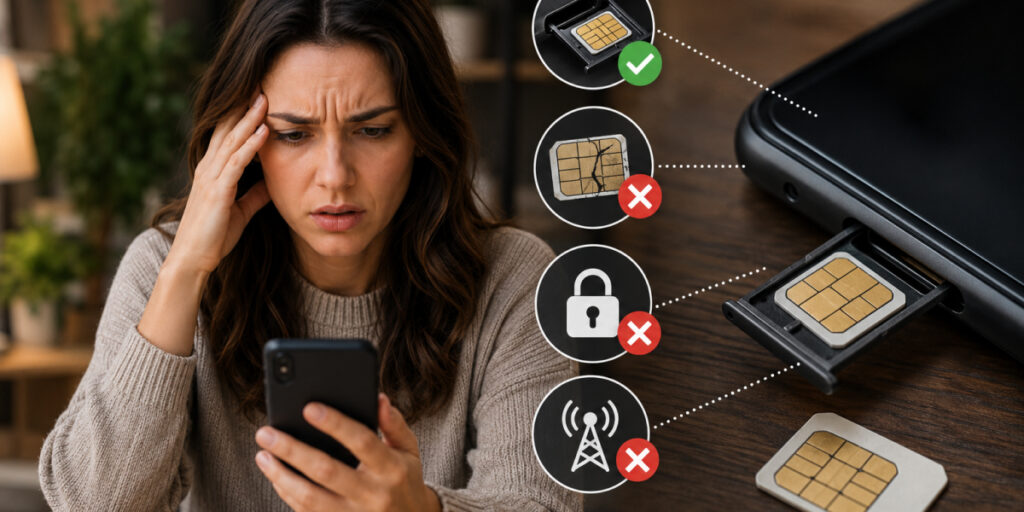
A physical SIM card that's damaged, unseated, or incompatible causes cellular data problems that settings fixes won't resolve.
- The SIM card isn't seated properly in the tray
- The SIM card is damaged or worn
- The SIM card is from a different carrier and your phone is locked
- Your carrier hasn't activated your SIM or data plan correctly
Note: The best solution to prevent SIM card issues is to use a travel eSIM. With Airhub eSIM, you can add a local data plan digitally before you leave home, and activate it when you land. If you're new to eSIMs, our guide on what is an eSIM is a good starting point.
4. Software and Account Issues
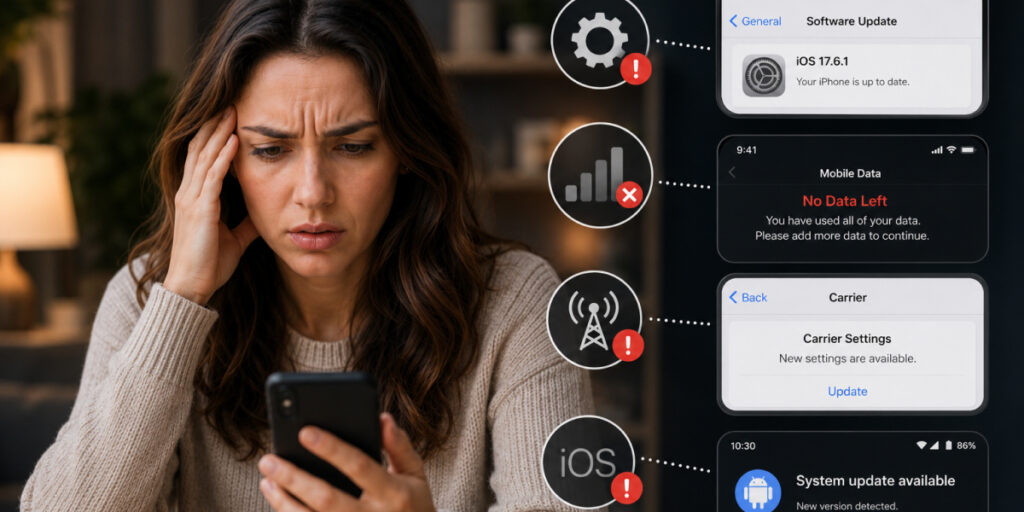
- Outdated iOS or Android version - Software bugs in older OS versions can disrupt mobile network connections
- Data plan expired or exhausted - Once you hit your data cap, carriers either cut you off or throttle speeds
- Carrier settings need updating - Separate from your phone's OS update, carrier settings updates occasionally fix connectivity bugs
- Recent iOS or Android update broke something - New updates occasionally introduce bugs that affect cellular connectivity
How to Fix Cellular Data Not Working
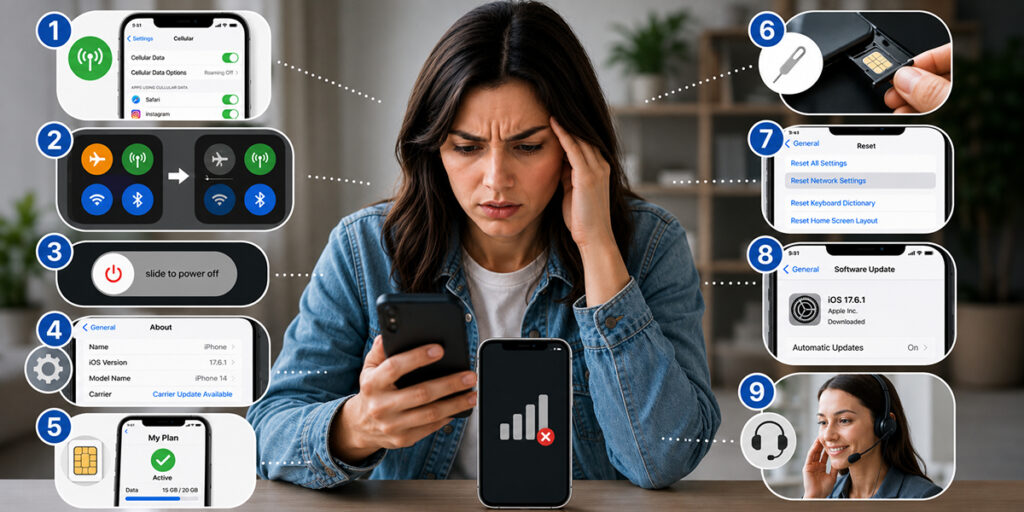
On iPhone
If you're dealing with iPhone cellular data not working, work through these fixes in order.
Step 1: Check the basics
Go to Settings → Cellular and make sure Cellular Data is toggled on. While you're there, check that the specific app you're trying to use also has cellular access enabled. You can scroll down the Cellular settings page to see per-app permissions.
Step 2: Turn Airplane Mode on, then off
Open Control Center, tap the airplane icon to turn it on, wait 10–15 seconds, then tap it again to turn it off. This often resolves a stuck connection.
Step 3: Restart iPhone
When the cellular data isn’t working, sometimes a restart can fix most of these issues. Try switching off your device and waiting for a few seconds before turning it back on again.
Step 4: Check for a carrier settings update
See if a carrier update is available in your settings. You can do these by going to settings first, clicking on general and then about.
Step 5: Check your data plan
Log into your network carrier’s app or website and make sure your plan is active or hasn't expired. If there’s no active plan, you can simply recharge to get data access again.
Step 6: Remove and reinsert the SIM card
Use the SIM eject tool to remove your SIM tray, take the SIM out, reseat it carefully, and reinsert the tray. Your iPhone will reconnect to the carrier network fresh.
Tip: You can prevent this specific issue if you have an eSIM instead. They’re a virtual chip that’s embedded inside your phone and performs the same function as a SIM. Not sure if your phone supports eSIM? Check the eSIM compatible devices for the full list
Step 7: Reset network settings
We also recommend resetting your network settings such as VPN and APN settings and restoring them to default. You can do this by going into Settings → General → Reset iPhone → Reset Network Settings.
Step 8: Update iOS
When Apple releases a new iOS version, it might also come with bug fixes that are worth taking a look at. If any software update is present, install it by going into Settings → General, then Software Updates.
Step 9: Contact your carrier
If you have followed all the steps mentioned above and data is still not working, it’s time to have a call or chat with your network carrier instead, as there may be an account-level issue.
Android
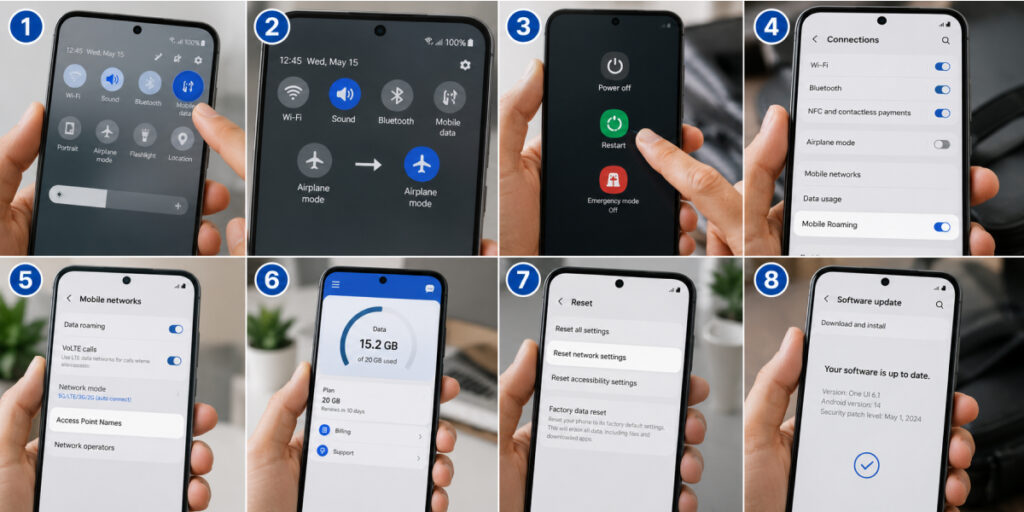
The same principles apply when trying to fix mobile data not working on Android, but the menu paths differ slightly.
Step 1: Check mobile data is on
As simple as it sounds, most people tend to forget it. Start by making sure the Mobile Data is active, which can be done from the notification bar or settings.
Step 2: Toggle Airplane Mode
You can also turn airplane mode on for a bit. This will fix most network and data issues. We suggest leaving it on for atleast 15 seconds before turning it off.
Step 3: Restart your phone
Some of the earliest fixes you can do. Hold the power button and then let it shut down before turning it back on after a few seconds or minutes.
Step 4: Check data roaming
This is the most critical if you're currently outside your home network. First, check if roaming is enabled which can be done through Settings and then Connections and Mobile Networks.
Step 5: Verify APN settings
If you recently bought a new SIM or eSIM, it’s wise to see if the APN list is empty or incorrect. You can contact your carrier for the correct APN settings, as they’re network-specific and must be exact. To check, go to Settings → Connections → Mobile Networks, then click on Access Point Names.
Step 6: Check your data cap
Download and open your carrier’s app and dial or chat with their customer service and confirm that you do have an active plan and it hasn’t hit its limit, as most providers might have hidden terms on select plans.
Step 7: Reset network settings
We also recommend resetting the network settings if all else fails. If you have a Samsung, go to Settings → General Management → Reset → Reset Network Settings. If you’re on Pixel: Settings → System → Reset Options → Reset WiFi, Mobile & Bluetooth. Or simply search for network settings in the search bar.
Step 8: Update your Android software
Go to Settings → Software Update (Samsung) or Settings → System → System Update (Pixel) and install any available updates.
Reasons for Mobile Network Not Available After Traveling?
Asking yourself, “Why is my data not working?” right after you land? When you travel internationally, your phone needs to connect to a foreign carrier's network and several things can prevent that from happening.
1. Data roaming is off.
This is the most common cause. Your home carrier's plan may not include international roaming, or data roaming may simply be disabled in your settings.
2. No roaming agreement
Your carrier may not have a roaming agreement with the local networks available in the country you've traveled to. In that case, your phone will show "No Service" regardless of your settings.
3. No international data.
Some budget plans are domestic-only. Check with your carrier before you travel, not after you land.
4. APN settings changed
When you cross borders, some networks require different APN configurations that your phone hasn't updated to.
When Your Cellular Network Is Not Available
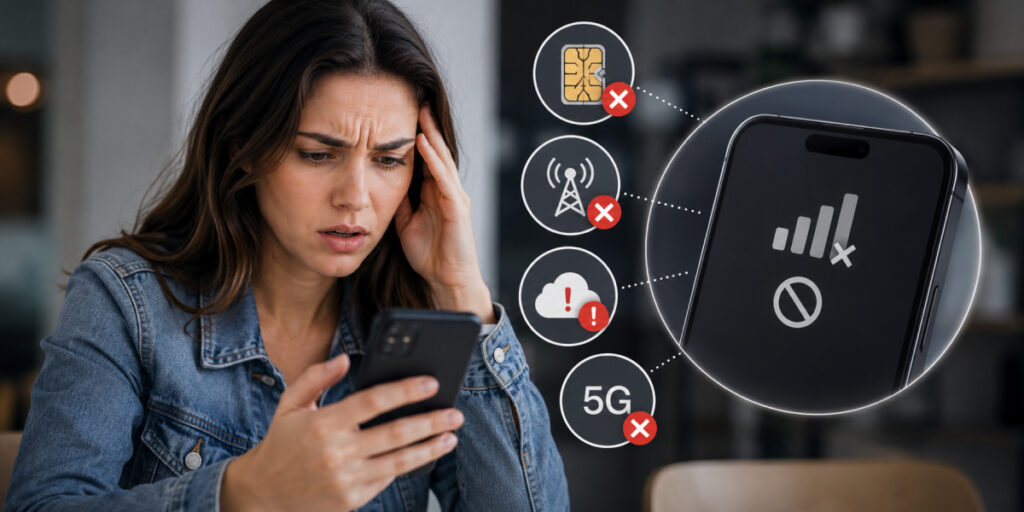
Seeing "Mobile Network Not Available" or "Cellular Network Not Available" on your screen is a specific error that usually means one of the following:
- Your SIM card has been removed or isn't being detected
- Your phone is in an area with no coverage from your carrier
- There's a network outage affecting your carrier in your area
- Your phone's network mode is set to a band that isn't supported in your current location (e.g., set to 5G only in an area with no 5G)
To fix:
First, try toggling Airplane Mode on and off. Then go into your network settings and change the preferred network type from "5G Only" to "Auto" or "4G/LTE/3G/2G (Auto)".
This lets your phone fall back to whatever signal is available. If the error persists across multiple locations, it's likely a SIM or account issue that requires contacting your carrier.
Could an eSIM Be the Long-Term Fix?
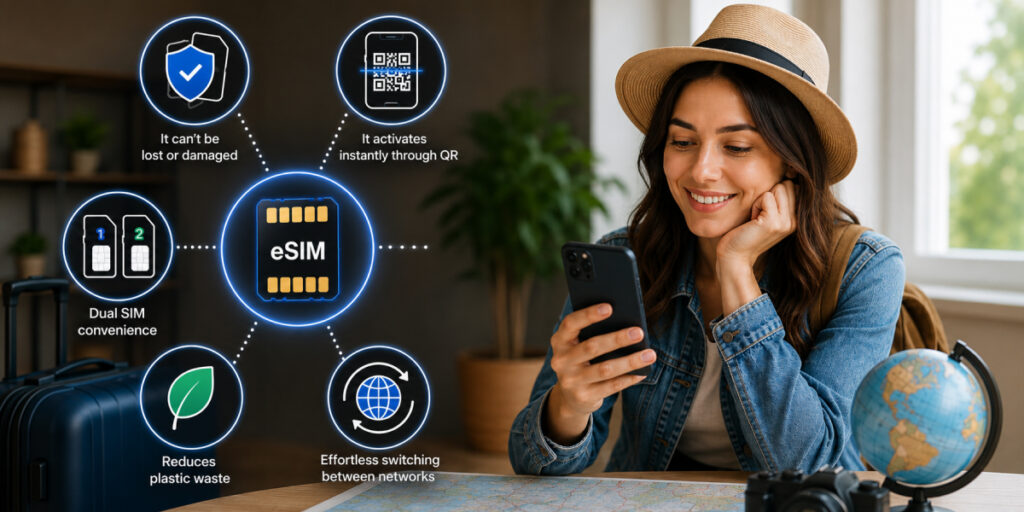
If you find yourself repeatedly dealing with mobile data not working, especially when traveling, it might be time to consider why a physical SIM card keeps causing the problem in the first place.
Physical SIMs can easily get damaged, stolen or become lose. They also require swapping of SIMs when traveling internationally and also tied to a single carrier. An eSIM eliminates most of that.
- It can't be lost or damaged
- It activates instantly through QR
- Dual SIM convenience
- Reduces plastic waste
- Effortless switching between networks
For a full breakdown of the advantages, check the benefits of eSIM guide, which covers exactly what makes switching worth it.
Airhub eSIM: Reliable Data Without the SIM Card Headaches
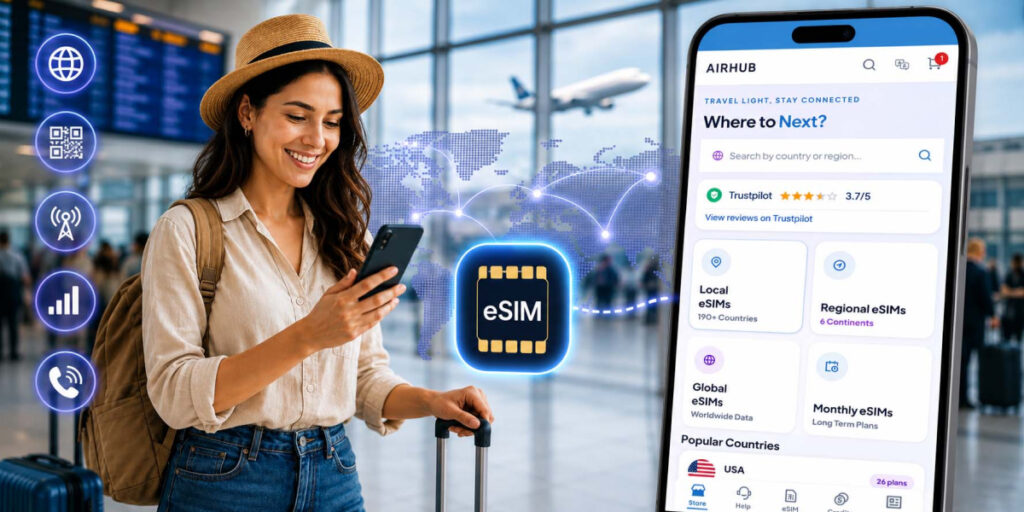
For travelers specifically, having a dedicated travel eSIM means your home SIM stays untouched while your travel data is handled by a provider built for international connectivity. Airhub eSIM covers 190+ countries and activates via QR code in under two minutes. Our eSIM also comes with unlimited and voice plans for even more seamless connectivity. You can buy eSIM online directly through Airhubapp before your next trip. That way, you never have to ask yourself, “Why is my cellular data not working?” ever again.
FAQs
1. Why does my cellular data work but not my hotspot?
That's because they function differently from each other. Go to Settings → Personal Hotspot (iPhone) or Settings → Mobile Hotspot (Android) and make sure you turn it on.
2. How do I reset my cellular connection?
To reset your cellular connection, you can start with the simplest trick - which is to turn the Airplane Mode on for a few seconds. If you want a deeper reset, go to network settings and use the Reset Network Settings option.
3. Why is my cellular data not working when I have data?
Even with data, your cellular data might not work because of certain settings. Check if the mobile data is on and that Airplane mode is off. Your plan might also have a speed throttle after a certain usage limit, so check with your provider.
4. Why is my iPhone cellular data not turning on?
If the Cellular Data toggle in Settings won't respond, try restarting your iPhone first. And if it still doesn't turn on, check for a carrier settings update or do a Network Settings reset. If the issue persists, contact your carrier.
5. Why is my cellular data not working after traveling?
The most common cause is data roaming being disabled, so make sure it’s turned on. Also, check that your home carrier includes international roaming in your plan. If neither applies, your carrier may not have coverage in your destination.

