

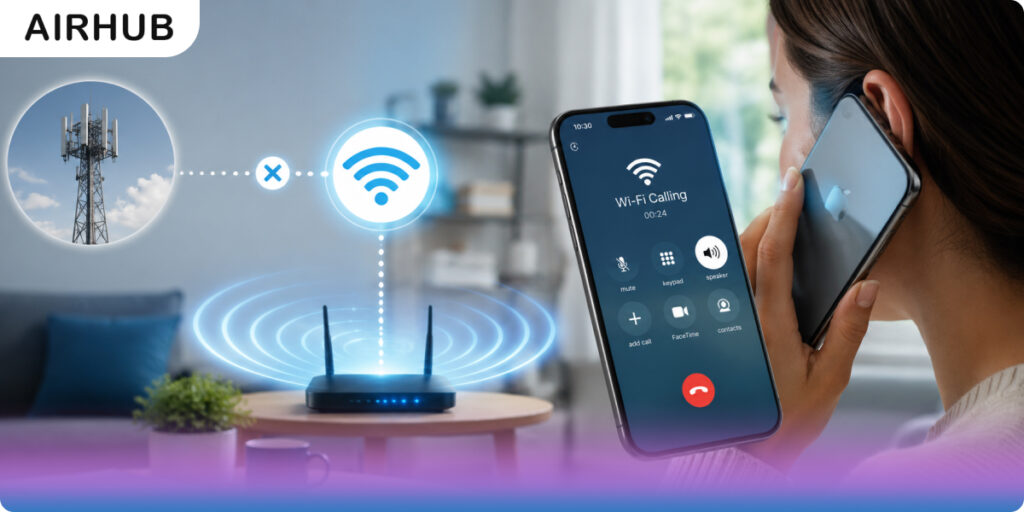
In a world where staying connected is essential, nothing is more frustrating than being cut off by poor cell reception. WiFi calling turns any Wi-Fi network into a way to make phone calls and send texts. This blog will answer what Wi-Fi calling is, explain how it works, its pros and cons, and how to enable it on Android and iPhone. We’ll also show why pairing Wi-Fi calling with a travel eSIM makes staying in touch even easier.
Table of Contents
- What is Wi-Fi Calling?
- Behind the Scenes: How Wi-Fi Calling Works
- What are the Advantages of Wi-Fi Calling?
- Are there any Disadvantages of Wi-Fi Calling?
- Enabling Wi-Fi Calling on Android
- Enabling Wi-Fi Calling on iPhone
- eSIM: Supercharging Your Wi-Fi Calls
- Do Wi-Fi Calling Seamlessly with Airhub!
- Do Wi-Fi Calling Without Any Break!
- FAQs
What is Wi-Fi Calling?
Wi-Fi calling is essentially a Voice-over-Wi-Fi feature built into modern smartphones. It allows you to use Wi-Fi networks to make calls and send texts instead of a cellular network. Your phone turns your voice into data and sends it to your carrier over the Internet, the same way a regular call works. You use your normal dialer and phone number; no extra app or account is needed.
Behind the Scenes: How Wi-Fi Calling Works

Are you curious: how does Wi-Fi calling work? Using Wi-Fi to Wi-Fi calling is not a tricky process; you just have to follow a few quick steps:
- Voice becomes data: Your phone digitizes each second of your speech into small data packets and sends them securely over the Wi-Fi connection.
- Carrier routing: Those packets travel over the Internet to your mobile carrier’s network. The carrier then connects the call just as if you had used a cell tower.
- Seamless handover: If your Wi-Fi cuts out and cellular service returns, many phones can automatically switch the call from Wi-Fi back to the cellular network without dropping it.
- Emergency calls: Because Wi-Fi can’t locate you as cell towers can, you must register an E911 address in advance. If you dial 911 on Wi-Fi, dispatchers use your registered address, not your phone’s live GPS.
What are the Advantages of Wi-Fi Calling?
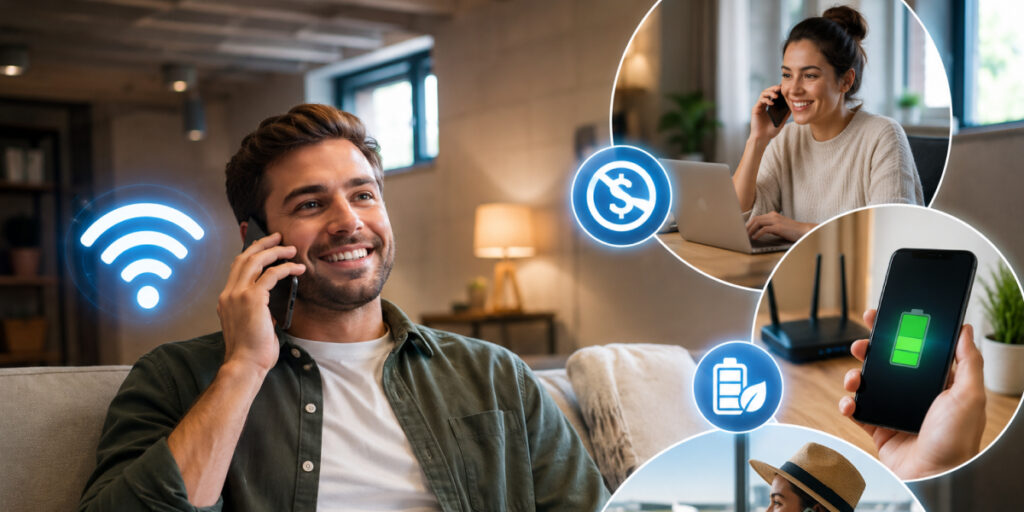
If you are wondering: Is Wi-Fi calling good? Here are the perks that you should know:
- Better indoor coverage: You can call from basements, buildings, or rural spots where cell signals are weak, as long as Wi-Fi is available.
- No extra fees: Calls and texts over Wi-Fi count like normal calls under your plan. In practice, domestic Wi-Fi calls are usually free beyond your existing plan’s rates. (Extra fees also depend upon eSIM vs SIM, so make sure you choose wisely)
- Battery and data savings: Using Wi-Fi often saves battery life (no constant signal searching) and doesn’t eat into your cellular data allowance.
- International advantage: When traveling, you can use local Wi-Fi or an eSIM data plan to call home at regular rates, helping you avoid costly roaming.
Are there any Disadvantages of Wi-Fi Calling?
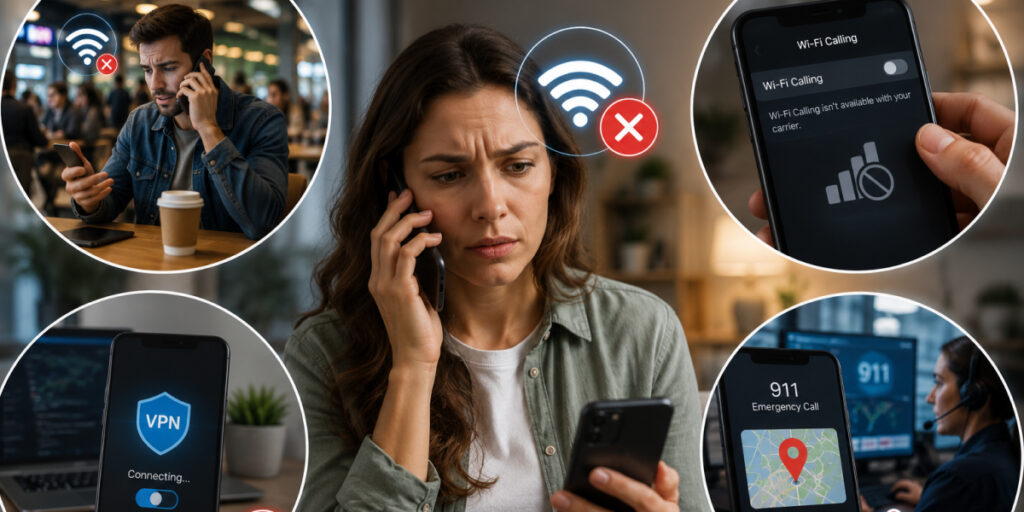
If you wish to enable Wi-Fi calling, these are the drawbacks you should be aware of:
- Public Wi-Fi issues: At some public hotspots, such as coffee shops, hotels, and airports, VoIP traffic may be throttled or blocked, making Wi-Fi calling jittery.
- Not universal: Very old phones or certain carriers might not offer Wi-Fi calling. If you don’t see the option in your settings, your carrier may not support it.
- Emergency limitations: Remember to update your registered address. 911 dispatchers only see that address for Wi-Fi 911 calls. They won’t get your real-time GPS location.
- VPN/firewall conflicts: Using a VPN or a strict firewall can disrupt Wi-Fi calls, since they reroute the data traffic.
Enabling Wi-Fi Calling on Android
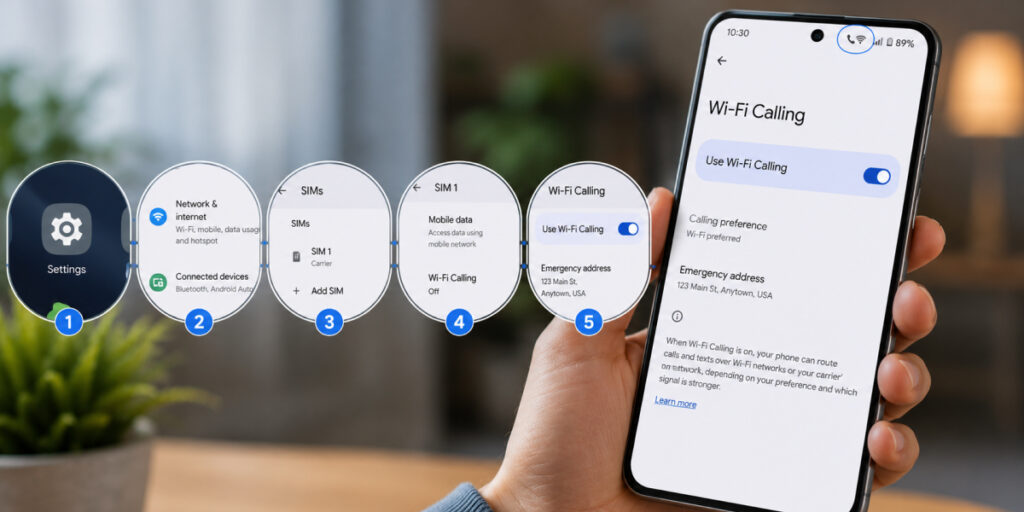
If you are wondering: how to use Wi-Fi calling on Andriod devices? Here are the steps to follow:
- Open Settings on your Android phone.
- Tap Network & internet or Connections (names vary by brand).
- Tap SIMs or your carrier’s name, then find Wi-Fi Calling.
- Toggle Wi-Fi Calling on. You may be asked to enter or confirm your emergency address.
- Once it’s on, you’ll see a phone+Wi-Fi icon or “Wi-Fi” label in the status bar.
Enabling Wi-Fi Calling on iPhone
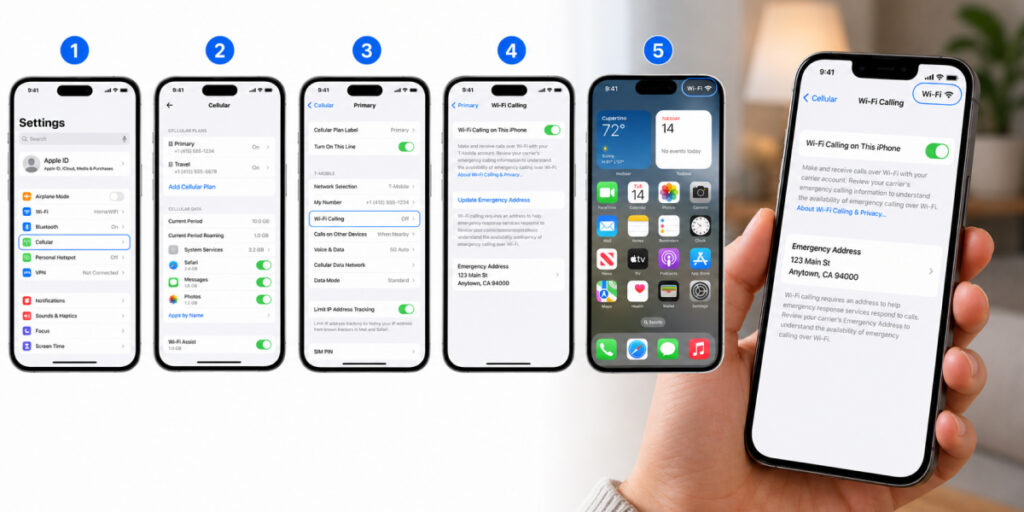
If you are wondering how to make calls over Wi-Fi on an iPhone? Here are the steps to follow:
- Go to Settings > Cellular.
- Select the line (SIM) you want to use.
- Tap Wi-Fi Calling and toggle it on.
- If prompted, enter or confirm your emergency address.
- Once enabled, “Wi-Fi” or a Wi-Fi icon will appear next to your carrier name in the status bar.
eSIM: Supercharging Your Wi-Fi Calls
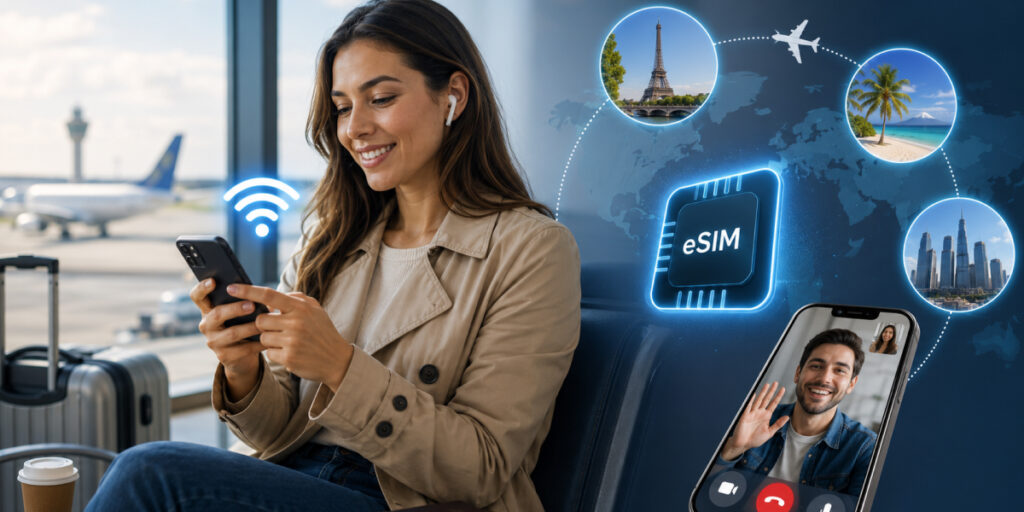
If you want to make phone calls over Wi-Fi, you need data for it. Using public Wi-Fi is generally not safe. If you are traveling, using your home network might incur a lot of roaming charges. If you are wondering: what is data roaming? It’s the charges put upon you for traveling out of your network coverage area. To skip all this fuss, having an eSIM is a must.
If you don’t know: what is eSIM? It is a digital version of a SIM card that you download over the internet. eSIM gives you access to local networks anywhere around the globe without any hidden or roaming charges. It also allows you to do free Wi-Fi calling through any app seamlessly.
Do Wi-Fi Calling Seamlessly with Airhub!
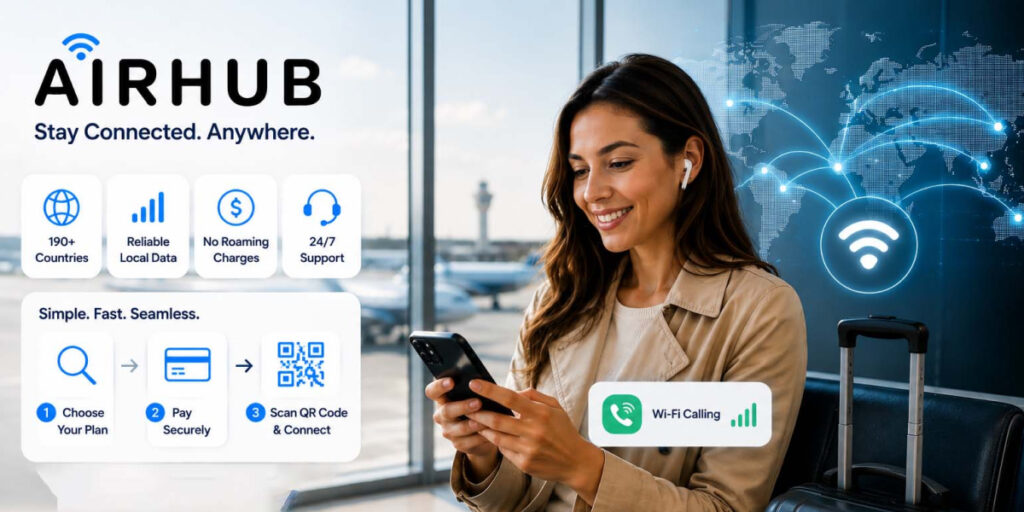
If you are looking to buy an eSIM online for seamless Wi-Fi calling, Airhub is right here for you. It is among the best eSIM resellers online, allowing you access to the local internet in 190+ countries. The eSIM purchase process with Airhub is very simple; you just have to pick your plan, pay, and scan the QR code to start using the data hassle-free.
Do Wi-Fi Calling Without Any Break!
Wi-Fi calling turns any Wi-Fi connection into a phone connection, so you can call and text even without a cell signal. It’s built into most modern phones and typically doesn’t cost extra. We’ve covered what Wi-Fi calling is, how it works, its advantages and limitations, and how to enable it on Android or iPhone. When you combine Wi-Fi calling with a travel eSIM, you can connect nearly anywhere. Particularly for travelers, Wi-Fi Calling combined with eSIM is a giant leap forward in staying connected. We hope this guide answered the question "what is WiFi Calling" and showed you how to make use of it. Give it a try on your next trip to see the difference.
FAQs
1. Does Wi-Fi calling cost money?
Not usually – if you have a regular voice plan, Wi-Fi calls in your home country use the same plan, so you won’t pay extra. (International calling still follows your carrier’s rates.)
2. Will Wi-Fi calling use my mobile data?
No. When a call goes over Wi-Fi, it uses the Wi-Fi network’s Internet, not your cellular data plan. It won’t eat into your mobile data allowance.
3. How do I make a phone call over Wi-Fi?
Just dial or text normally from your phone’s dialer or contacts. With Wi-Fi calling enabled and a Wi-Fi icon showing, your phone will automatically route the call over Wi-Fi instead of the cell network.
4. Is Wi-Fi calling good?
Yes, in many situations. It extends coverage into poor-signal areas and often gives clearer audio. Just remember, the quality depends on having a strong Wi-Fi connection. If Wi-Fi is bad, calls may suffer.
5. Why should I use an eSIM for Wi-Fi calling?
An eSIM (like Airhub’s) gives you local data anywhere, ensuring internet for your calls, no matter where you are. It’s cheaper than roaming and avoids swapping SIM cards, so you can just activate a global data plan and call away.

